In this article
WhatsApp, the world’s leading messaging application, offers multiple ways to express yourself creatively. One of the most popular ways to do so is by sharing GIFs. GIFs are short, looping animations that add a touch of humor, emotion, or emphasis to your conversations. Whether you want to convert a video clip into a GIF or find the perfect one to express your mood, WhatsApp makes it easy.
In this comprehensive guide, we will walk you through the step-by-step process of how to make a GIF on WhatsApp for Android, iOS, and desktop. We will also discuss useful tips, common mistakes to avoid, and creative ideas to enhance your messaging experience.
What is a GIF?
A GIF (Graphics Interchange Format) is a type of image file that supports animated frames. Unlike videos, GIFs are shorter and loop endlessly, making them perfect for quick reactions or highlights.
Why Use GIFs on WhatsApp?
- Express Emotions: Enhance your messages with visuals.
- Add Humor: Make conversations funnier and more engaging.
- Highlight Moments: Share memorable clips instantly.
- Creative Communication: Personalize your chats with custom-made GIFs.
How to Make a GIF on WhatsApp for Android
Creating a GIF on WhatsApp is straightforward on Android devices. Follow the steps below:
1: Open WhatsApp
- Launch WhatsApp from your home screen or app drawer.
2: Open a Chat
- Navigate to the chat where you want to send the GIF.
3: Tap on the Attachment Icon
- Tap the Attachment (paperclip) icon.
- Select Gallery to access your videos.
4: Select a Video
- Choose a video from your gallery that you want to convert into a GIF.
5: Trim the Video
- WhatsApp allows you to trim the video to your preferred length. Keep the duration below 6 seconds to convert it into a GIF.
6: Convert to GIF
- Tap the GIF button that appears below the trimming bar.
7: Send the GIF
- Tap the Send button to share your newly created GIF.
How to Make a GIF on WhatsApp for iPhone (iOS)
The process is slightly different for iOS users, but equally simple.
1: Open WhatsApp
- Launch the WhatsApp app on your iPhone.
2: Select a Chat
- Open a conversation where you want to send the GIF.
3: Tap the Plus Icon (+)
- Tap the + icon located next to the text field.
- Select Photo & Video Library.
4: Choose a Video
- Pick a video from your photo library.
5: Trim the Video
- Adjust the slider to trim the video to 6 seconds or less.
6: Tap GIF
- Tap the GIF button to convert the trimmed video into a GIF.
7: Send the GIF
- Hit the Send button to share your GIF.
How to Make a GIF on WhatsApp Web (Desktop)
Currently, WhatsApp Web does not support creating GIFs directly. However, you can upload pre-made GIFs from your computer.
1: Open WhatsApp Web
- Log in to WhatsApp Web via your browser.
2: Select a Chat
- Choose the conversation where you want to send the GIF.
3: Click the Attachment Icon
- Click the Attachment icon and choose Photos & Videos.
4: Upload a GIF File
- Select a GIF file from your computer.
5: Send the GIF
- Click the Send button.
How to Find and Send Existing GIFs on WhatsApp
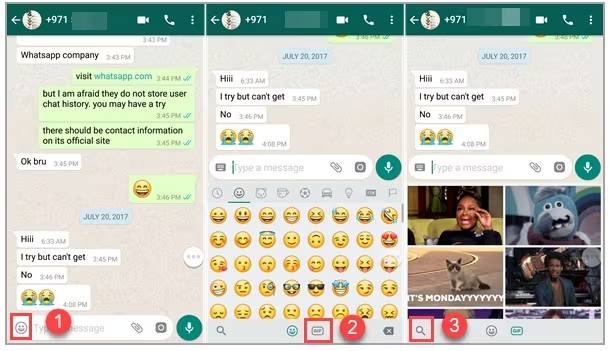
If you don’t want to create your own GIFs, WhatsApp offers a vast collection of pre-made GIFs powered by Tenor and GIPHY.
Steps to Find GIFs
- Tap the Emoji icon in the chat bar.
- Select the GIF option at the bottom of the screen.
- Use the search bar to find a specific GIF or browse through the trending ones.
- Tap on the desired GIF to preview it.
- Tap Send.
Tips for Making the Best GIFs on WhatsApp
- Keep It Short: Ensure your videos are under 6 seconds.
- Use High-Quality Videos: Start with a clear and vibrant clip for the best results.
- Be Creative: Try experimenting with different videos and effects.
- Use Editing Apps: Consider using third-party apps like GIPHY or InShot for additional customization.
Troubleshooting Common Problems
- GIF Option Not Appearing: Ensure your video is trimmed to 6 seconds or less.
- File Format Issues: Convert videos to supported formats if necessary.
- WhatsApp Not Updated: Ensure you are using the latest version of WhatsApp.
Conclusion
Learning how to make a GIF on WhatsApp is a fun and straightforward process that adds creativity and personality to your messages. By following the steps outlined in this guide, you can quickly create your own GIFs and share them with friends and family.
Explore your creativity, make your conversations more lively, and have fun with the endless possibilities GIFs offer on WhatsApp.

Md Saizul Amin
Digital Systems Strategist · AI Agent Developer · 9+ years in digital & ITMd Saizul Amin is a digital systems strategist and AI automation engineer from Dhaka, Bangladesh. With 9+ years across IT, web development and digital marketing, he writes practical guides on technology, business, education and online growth — and builds the same kinds of systems (AI agents, websites, SEO and ad campaigns) for clients in Bangladesh, the UK and the USA.
Specialist in
Credentials & experience
- 🎓B.Sc. in Computer Science & EngineeringBangladesh University of Business & Technology (BUBT), 2017–2021
- 🤖AI Automation Engineer · Web Developer · SEO SpecialistUnique Mark Limited, Birmingham UK — 2024 to present
- 🌱IT SpecialistGreen Fund Initiative Inc., USA — 2024 to present
- 🏥Junior IT Consultant — Ministry of Health (DGHS)Built the first national Shareable Health Record website; supported 6,000+ facilities
- 🧭Head of ITWEDO Bangladesh — led IT for 50+ staff, 2021–2023