In this article
Introduction
Creating timelines is essential for organizing events, tracking progress, and visualizing historical data. While many people turn to specialized software for creating timelines, Google Docs provides a simple yet powerful alternative. Knowing how to make a timeline on Google Docs can save you time and effort, especially if you need to collaborate with others in real-time.
Whether you are a student working on a history project, a professional organizing tasks for a presentation, or someone simply trying to visualize your goals, Google Docs offers the flexibility and accessibility needed to create effective timelines.
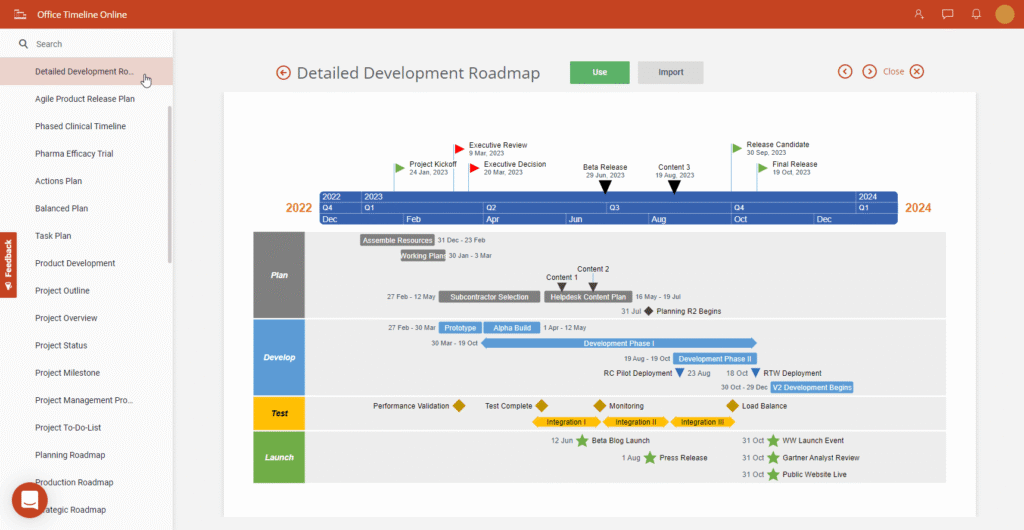
This comprehensive guide will walk you through the process of creating a timeline on Google Docs. We’ll cover different methods, including using tables, drawing tools, templates, and third-party integrations.
Why Use Google Docs for Making Timelines?
Google Docs is a versatile tool that offers several advantages when it comes to creating timelines.
Benefits of Using Google Docs
- Accessibility: Create and edit timelines from any device with internet access.
- Collaboration: Work with team members simultaneously and track changes in real-time.
- Free to Use: Google Docs is a cost-effective solution compared to premium software.
- Integration: Easily integrate with other Google Workspace apps like Google Sheets and Google Slides.
- Cloud Storage: Save your timeline on Google Drive for easy access and sharing.
When to Use Google Docs for Timelines
- Project Management.
- Educational Assignments.
- Historical Events Visualization.
- Personal Goal Tracking.
- Marketing Campaign Planning.
Different Methods for Creating Timelines on Google Docs
Google Docs offers various ways to create timelines depending on your needs and preferences.
1. Creating Timelines Using Tables
Tables are one of the simplest methods for creating timelines in Google Docs.
How to Create a Timeline Using Tables
- Open a blank document in Google Docs.
- Click on Insert > Table.
- Choose the number of rows and columns based on the timeline’s complexity.
- Label each column with dates, events, descriptions, or milestones.
- Customize the table by adjusting cell sizes, merging cells, or adding colors.
Pros
- Simple and straightforward.
- Easy to edit and customize.
- Great for text-based timelines.
Cons
- Limited visual appeal compared to graphical timelines.
- Not ideal for complex timelines.
2. Creating Timelines Using Drawing Tool
Google Docs offers a built-in drawing tool that allows you to create visually appealing timelines.
How to Create a Timeline Using the Drawing Tool
- Click on Insert > Drawing > New.
- Use the Line Tool to draw a horizontal or vertical line.
- Add Shapes (e.g., circles or rectangles) to mark important events or milestones.
- Use Text Boxes to label each event.
- Customize colors, fonts, and sizes for better visual impact.
- Click Save and Close to insert the timeline into your document.
Pros
- Offers creative control over design.
- Can include images, shapes, and text.
- Ideal for presentations or reports.
Cons
- Requires more effort and creativity.
- Not as straightforward as using tables.
3. Using Templates for Timelines
If you prefer a more polished look, using templates is a great option.
How to Use Templates
- Open Google Docs and click on File > New > From template gallery.
- Browse available templates or search for Timeline Templates.
- Select a template that suits your needs.
- Customize the content and design to fit your purpose.
Pros
- Time-efficient.
- Professional and polished designs.
- Easy to edit and customize.
Cons
- Limited template options in Google Docs.
- May require customization for specific needs.
4. Using Google Sheets for Advanced Timelines
Google Sheets provides more flexibility and functionality for creating detailed timelines.
How to Create a Timeline Using Google Sheets
- Open a new Google Sheets document.
- Label columns for Date, Event, and Description.
- Use Conditional Formatting to highlight important events.
- Add charts or graphs for visual representation.
- Insert the Google Sheet into Google Docs via Insert > Chart > From Sheets.
Pros
- Enhanced visual customization.
- Supports complex data structures.
- Easily shareable and collaborative.
Cons
- Requires more technical expertise.
- Not as user-friendly as other methods.
Tips for Making Effective Timelines on Google Docs
- Use Consistent Styling: Maintain uniform fonts, colors, and formatting throughout the timeline.
- Include Relevant Details: Avoid overcrowding the timeline with unnecessary information.
- Use Images and Icons: Enhance visual appeal by incorporating relevant graphics.
- Provide Context: Add brief descriptions for important events or milestones.
- Test for Clarity: Ensure your timeline is easily understandable and visually pleasing.
Conclusion
Learning how to make a timeline on Google Docs can significantly enhance your ability to organize and present information effectively. Whether you choose to use tables, drawing tools, templates, or Google Sheets, the key is to select a method that best suits your needs.
Google Docs’ accessibility, collaboration features, and customization options make it a great tool for creating timelines for various purposes. Experiment with different approaches, incorporate visuals, and refine your timeline until it perfectly communicates your message.
Start creating your timeline today and make your projects more organized and visually compelling!

Md Saizul Amin
Digital Systems Strategist · AI Agent Developer · 9+ years in digital & ITMd Saizul Amin is a digital systems strategist and AI automation engineer from Dhaka, Bangladesh. With 9+ years across IT, web development and digital marketing, he writes practical guides on technology, business, education and online growth — and builds the same kinds of systems (AI agents, websites, SEO and ad campaigns) for clients in Bangladesh, the UK and the USA.
Specialist in
Credentials & experience
- 🎓B.Sc. in Computer Science & EngineeringBangladesh University of Business & Technology (BUBT), 2017–2021
- 🤖AI Automation Engineer · Web Developer · SEO SpecialistUnique Mark Limited, Birmingham UK — 2024 to present
- 🌱IT SpecialistGreen Fund Initiative Inc., USA — 2024 to present
- 🏥Junior IT Consultant — Ministry of Health (DGHS)Built the first national Shareable Health Record website; supported 6,000+ facilities
- 🧭Head of ITWEDO Bangladesh — led IT for 50+ staff, 2021–2023