
In this article
Introduction
In the world of collaborative software development, GitHub stands out as the most popular platform for version control and source code management. One of the most critical aspects of contributing to open-source projects or working within a team is the ability to create and manage pull requests. This article will provide an extensive, step-by-step guide on how to create a pull request in GitHub and explain the best practices for ensuring your contribution is successfully merged.
What is a Pull Request in GitHub?
A pull request (PR) is a feature of GitHub that allows developers to propose changes to a codebase. It enables users to submit their modifications for review, discussion, and merging into the original repository. Pull requests are essential for collaboration, code review, and maintaining the integrity of a project.
Why Are Pull Requests Important?
- Facilitates collaboration among developers.
- Ensures code quality through peer review.
- Provides a transparent history of changes.
- Allows maintainers to accept or reject contributions.
- Enhances learning and knowledge sharing within teams.
Prerequisites for Creating a Pull Request
Before creating a pull request in GitHub, ensure you have:
- A GitHub account.
- A forked repository of the original project.
- A local clone of your forked repository.
- An appropriate branch to work on your changes.
Step-by-Step Guide: How to Create a Pull Request in GitHub
Step 1: Fork the Repository
Forking a repository creates a copy of the original repository under your GitHub account. This is essential for making changes without affecting the main project.
- Navigate to the repository you wish to contribute to.
- Click the Fork button located at the top-right corner of the repository page.
- Wait for GitHub to create a copy of the repository under your account.
Step 2: Clone the Forked Repository Locally
Once you’ve forked the repository, you need to clone it to your local machine for making changes.
$ git clone https://github.com/YourUsername/RepositoryName.git
Change to the cloned repository directory:
$ cd RepositoryName
Step 3: Create a New Branch
Creating a separate branch for your changes ensures the main branch remains unaffected.
$ git checkout -b your-branch-name
Step 4: Make Changes and Commit Them
Make your desired changes to the project files. After making changes, commit them using:
$ git add .
$ git commit -m “Description of changes”
Step 5: Push Changes to Your Forked Repository
Upload your changes to your forked repository on GitHub.
$ git push origin your-branch-name
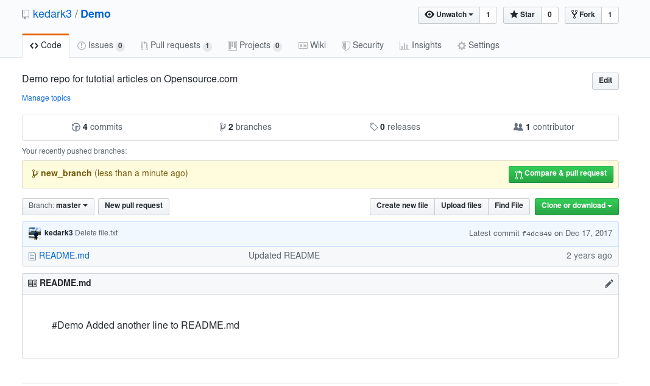
Step 6: Create a Pull Request on GitHub
- Navigate to your forked repository on GitHub.
- Click the Pull requests tab.
- Click the New pull request button.
- Choose the base repository and branch you want to merge into.
- Select your branch from the head repository.
- Add a title and description for your pull request.
- Click the Create pull request button.
Best Practices for Creating Pull Requests
- Keep Pull Requests Small: Make incremental changes to avoid overwhelming reviewers.
- Provide Clear Descriptions: Explain your changes thoroughly in the pull request description.
- Follow Coding Standards: Adhere to the project’s coding guidelines.
- Test Your Code: Ensure your code functions correctly before submitting a pull request.
- Be Open to Feedback: Collaborate with reviewers and make necessary adjustments.
Reviewing and Merging Pull Requests
Once you submit a pull request, repository maintainers will review it. They may approve, request changes, or reject it based on the quality of the contribution.
Steps to Merge a Pull Request
- Ensure all automated checks pass successfully.
- Receive approval from maintainers.
- Click the Merge pull request button.
- Delete the branch if it’s no longer needed.
Troubleshooting Common Issues
- Merge Conflicts: Resolve conflicts by rebasing or merging the latest changes from the main branch.
- Failed Checks: Review CI/CD logs to identify and resolve errors.
- Insufficient Permissions: Ensure you have collaborator access if contributing to a private repository.
Conclusion
Creating a pull request in GitHub is a straightforward yet powerful process that fosters collaboration and ensures code quality. By following the steps outlined in this guide, you can efficiently contribute to open-source projects or collaborate within your own team. Mastering the art of pull requests will enhance your skills as a developer and provide you with valuable experience in version control.

Md Saizul Amin
Digital Systems Strategist · AI Agent Developer · 9+ years in digital & ITMd Saizul Amin is a digital systems strategist and AI automation engineer from Dhaka, Bangladesh. With 9+ years across IT, web development and digital marketing, he writes practical guides on technology, business, education and online growth — and builds the same kinds of systems (AI agents, websites, SEO and ad campaigns) for clients in Bangladesh, the UK and the USA.
Specialist in
Credentials & experience
- 🎓B.Sc. in Computer Science & EngineeringBangladesh University of Business & Technology (BUBT), 2017–2021
- 🤖AI Automation Engineer · Web Developer · SEO SpecialistUnique Mark Limited, Birmingham UK — 2024 to present
- 🌱IT SpecialistGreen Fund Initiative Inc., USA — 2024 to present
- 🏥Junior IT Consultant — Ministry of Health (DGHS)Built the first national Shareable Health Record website; supported 6,000+ facilities
- 🧭Head of ITWEDO Bangladesh — led IT for 50+ staff, 2021–2023