In this article
This GTA 6 beginner guide is about getting ready, not about secret tricks. Grand Theft Auto VI launches on 19 November 2026 on PlayStation 5 and Xbox Series X|S, and Rockstar has not published detailed gameplay mechanics on its GTA VI page. So instead of guessing, this guide covers the preparation that genuinely makes your first hours better: your download, your TV and console settings, your controller, saving clips, safe online habits and avoiding spoilers. Every tip here is general and works for any large open-world game.
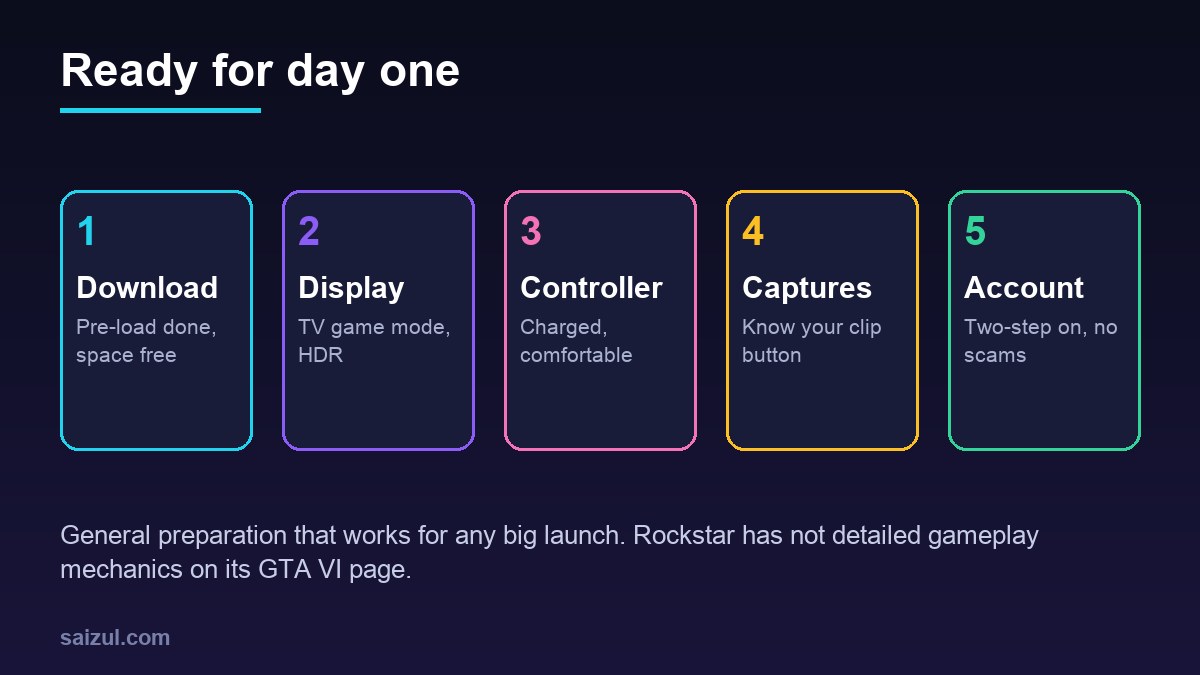
From my own work: I put together the launch checklist on this site’s GTA 6 hub page, and this guide is the longer version of it. None of it depends on knowing how the game plays. It is the setup I would do myself before any big release.
GTA 6 beginner guide: before launch day
- Finish the pre-load. Digital pre-orders could pre-load from 10 November 2026. Check it has completed, not just started. See the GTA 6 pre-load guide.
- Leave free storage for a possible day-one update. Rockstar’s page doesn’t list a file size, but PlayStation’s store page says to clear at least 212GB on PS5; Xbox may differ.
- Check the release time for your region in your console store. On PS5, PlayStation describes a rolling midnight launch by country; see GTA 6 release date and launch time.
- Update your console system software a day or two before, so you are not stuck installing it at launch.
- Plan your time. Big story games are best started with a free evening, not a rushed half hour.
TV and display settings
These settings help with any modern console game:
- Turn on your TV’s game mode. It reduces input lag, which makes controls feel more responsive.
- Run the console’s HDR calibration if your TV supports HDR. Both PS5 and Xbox Series X|S include an HDR adjustment tool in their settings. Then use any in-game brightness or HDR screen the game offers.
- Turn off motion smoothing on the TV. It can add lag and make motion look unnatural.
- Use the right HDMI port. Some TVs support their best features only on certain HDMI ports. Check your TV manual.
- Check the game’s own options when you first start. If the game offers display or performance modes, try each briefly and pick the one that feels best to you.
Audio and subtitles
- Headphones help you follow dialogue and spot sound cues.
- If you play late at night or in a noisy room, turn on subtitles from the start. It is easy to miss lines in a story-heavy game.
- Check the game’s audio options for dialogue and music volume, if offered. Music is a big part of Grand Theft Auto, and Rockstar is releasing a 34-track album on launch day; see the GTA 6 soundtrack guide.
Controller and comfort
- Charge your controller fully, and keep a charging cable within reach.
- Look at the control options in the game’s settings when you first start: camera sensitivity, inverted axes, vibration and any button remapping it offers.
- Use the console’s accessibility settings if you need them. Both PS5 and Xbox have system-level options such as button remapping.
- Sit comfortably at a sensible distance from the screen, and take breaks. Long launch-night sessions are tiring.
Saving clips and screenshots
You will want to capture moments from your first hours. Learn your console’s capture tools before launch.
On PS5
Press the Create button to open the capture menu. From there you can take a screenshot, start a recording, or save recent gameplay. PlayStation’s support page explains that you can save recent gameplay from the last 15 seconds up to one hour, and that you can change the Create button shortcuts in Settings > Captures and Broadcasts > Captures (PlayStation Support). Some games block captures in certain scenes, so a clip may skip parts.
On Xbox Series X|S
The Share button on the Xbox Wireless Controller sits in the middle, between View and Menu. Use it to take a screenshot or record a clip. Xbox Support covers capturing and sharing in detail (Xbox Support).
Capture tips
- Delete old captures to free storage before launch.
- Check clips for notifications or personal information before you share them.
- Avoid posting story spoilers without a warning. If you share on social media, the caption kit on the GTA 6 hub page can help.
Safe online habits
Big launches attract scammers. These habits protect your account and your money:
- Turn on two-step verification for your PlayStation Network or Microsoft account.
- Never share your password, including with someone offering to “unlock” items or “install” the game for you.
- Ignore “free money” or “free cash” offers. Generators, giveaways that ask for your login, and paid “modded accounts” are scams.
- Do not download “GTA 6 PC” files. No PC version has been announced; see is GTA 6 on PC?
- Be careful in voice chat and messages with strangers. Use the console’s privacy settings to choose who can contact you.
- Set a spending limit if you share the console with children. The GTA 6 parents’ guide has the steps.
Rockstar has not stated what online features will be available at launch, so treat any detailed “GTA 6 online” guide with caution for now.
Avoiding spoilers
- Mute keywords like “GTA 6 ending” and character names on your social apps for the first few weeks.
- Turn off autoplay on video sites, where thumbnails can give away story moments.
- Leave group chats on mute for a while if friends are further ahead.
Your first hours: general open-world advice
These tips are not about GTA 6’s mechanics, which Rockstar has not detailed on its page. They are common-sense habits for any big open world:
- Follow the story at first. Opening missions usually teach the basics.
- Read the on-screen tips and check the game’s help or tutorial menu if there is one.
- Save your progress in whatever way the game offers before you stop playing, and before you try something risky.
- Explore at your own pace. The world will still be there tomorrow.
- Take breaks, drink water and get some sleep. Launch week is a marathon, not a sprint.
FAQ
What should I do before GTA 6 launches?
Finish the pre-load, leave free storage for updates, update your console, charge your controller, set up your TV’s game mode and HDR, and turn on two-step verification on your account.
What are the best settings for GTA 6?
Rockstar has not published recommended settings on its GTA VI page. Start with your TV’s game mode and the console’s HDR calibration, then try any display options the game offers and pick what feels best.
How do I save a clip of GTA 6 on PS5?
Press the Create button and choose to save recent gameplay or start a recording. You can adjust Create button shortcuts in Settings, Captures and Broadcasts, Captures.
How do I record GTA 6 on Xbox?
Press the Share button on the Xbox Wireless Controller, between the View and Menu buttons, to capture a screenshot or clip.
Are there GTA 6 cheats or money glitches?
Rockstar has not published anything like that. Be very wary of anyone offering cheats, money or modded accounts for GTA 6, as these are common scams.
This is an independent fan guide. It is not affiliated with, endorsed by or sponsored by Rockstar Games or Take-Two Interactive. Grand Theft Auto is a trademark of Take-Two Interactive.
More GTA 6 guides
- GTA 6 release date and launch time in your time zone
- Is GTA 6 on PC? Every platform explained
- GTA 6 Ultimate Edition vs the Vintage Vice City Pack
- How to pre-load GTA 6 on PS5 and Xbox
- All 8 GTA 6 characters explained
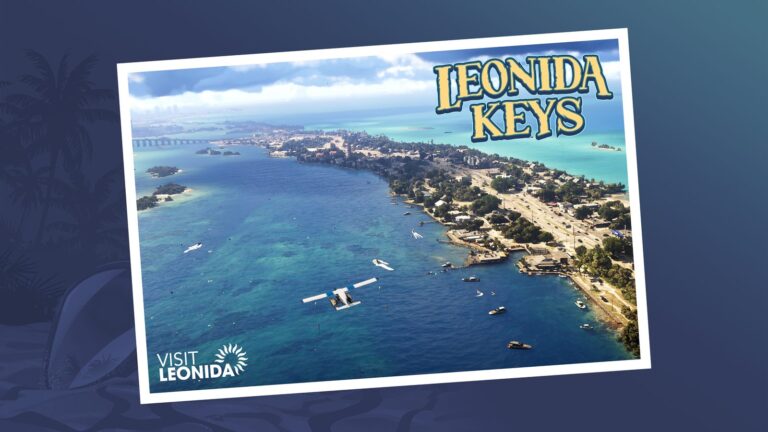
- GTA 6 map: Leonida and its 6 named places
- GTA 6 soundtrack: The Album and the Justice score
- Every official GTA 6 trailer, in order
- GTA 6 age rating: a practical guide for parents
- GTA 6 Bangla guide (বাংলায় সম্পূর্ণ গাইড)
Need help with this on your own site or business?
I build and secure WordPress sites, web apps and AI automations end to end, in Bangla and English: a free discovery call, a written scope with a fixed quote, a focused first version, then testing, deployment and monitoring.
See the portfolio and the AI agent services, or tell me what you need.
Sources
- Rockstar Games: Grand Theft Auto VI
- PlayStation Support: Capture gameplay and screenshots on PS5 consoles
- Xbox Support: Capture game clips and screenshots
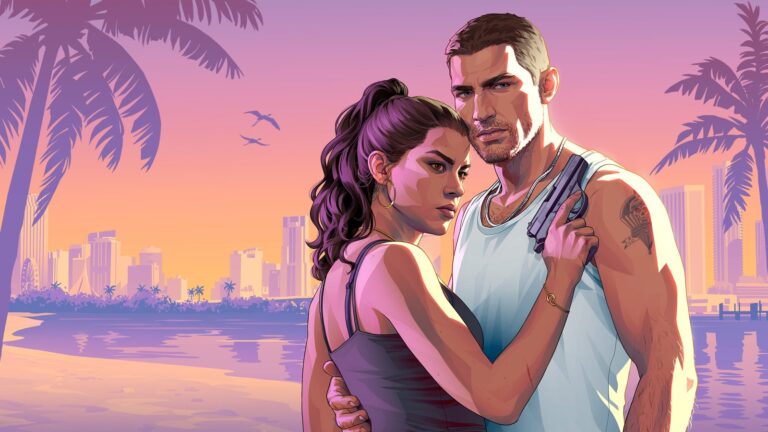
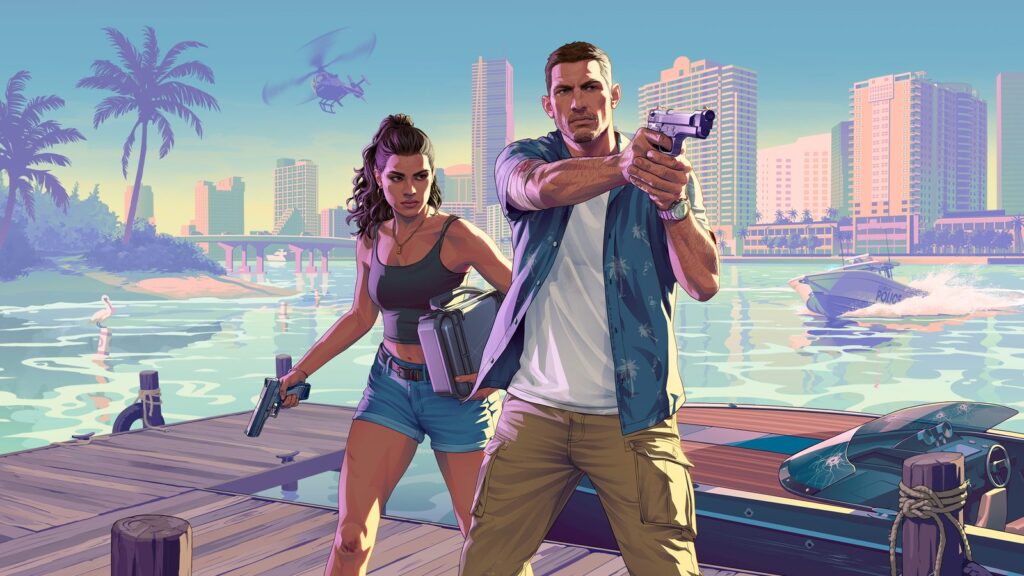
Featured artwork: official GTA VI promotional art © Rockstar Games.

Md Saizul Amin
Digital Systems Strategist · AI Agent Developer · 9+ years in digital & ITMd Saizul Amin is a digital systems strategist and AI automation engineer from Dhaka, Bangladesh. With 9+ years across IT, web development and digital marketing, he writes practical guides on technology, business, education and online growth — and builds the same kinds of systems (AI agents, websites, SEO and ad campaigns) for clients in Bangladesh, the UK and the USA.
Specialist in
Credentials & experience
- 🎓B.Sc. in Computer Science & EngineeringBangladesh University of Business & Technology (BUBT), 2017–2021
- 🤖AI Automation Engineer · Web Developer · SEO SpecialistUnique Mark Limited, Birmingham UK — 2024 to present
- 🌱IT SpecialistGreen Fund Initiative Inc., USA — 2024 to present
- 🏥Junior IT Consultant — Ministry of Health (DGHS)Built the first national Shareable Health Record website; supported 6,000+ facilities
- 🧭Head of ITWEDO Bangladesh — led IT for 50+ staff, 2021–2023